飞牛Docker 局域网部署 clash/mihomo全局科学 + WebUI 使用指南
目录
前言
Mihomo(原名 Mihomo Meta,亦即 Clash Meta)是目前 Clash 核心最活跃、功能最强大的分支。由于原始 Clash 项目删库,Mihomo 已成为各平台客户端的首选核心。
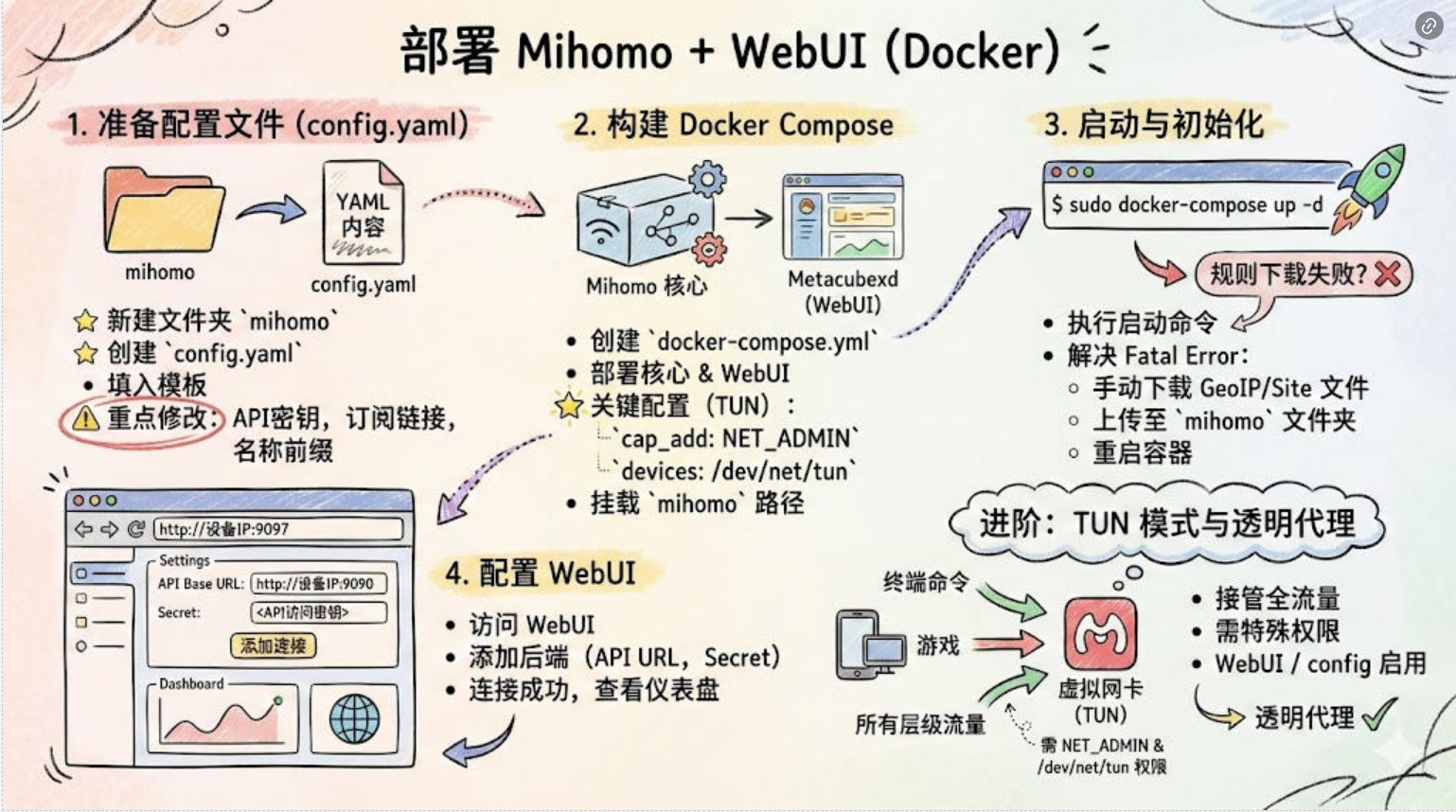
值得注意的是,Mihomo 本身是一个纯命令行程序(Core),没有图形界面。为了方便日常管理和监控,我们需要为其搭配一个 Web UI(如 Metacubexd)。本文将详细介绍如何在 Docker 环境(包括 Linux 服务器、NAS、飞牛OS等)中优雅地部署 Mihomo + WebUI,并开启 TUN 模式实现更接管更底层的流量。
准备工作
在开始之前,请确保您的环境满足以下条件:
Docker 环境:已安装 Docker 及 Docker Compose。
基础知识:熟悉基本的命令行操作(创建文件夹、编辑文件)。
网络环境:拥有可用的节点订阅链接。
体验订阅地址:xboard.88531.cn
第一步:编写配置文件 (config.yaml)
Mihomo 的运行核心在于配置文件。我们需要先在宿主机上准备好这个文件。
新建一个文件夹,命名为
mihomo。在其中创建一个名为
config.yaml的文件。参考以下模板填入内容。
⚠️ 重点修改提示: 请务必修改下方模板中的 第 7 行(API访问密钥)、第 20、21 行(节点订阅信息)与 第 26 行(节点名称前缀)。修改时请*去掉尖括号 *< >。mixed-port: 7890
allow-lan: true
bind-address: '*'
mode: rule
log-level: info
external-controller: '0.0.0.0:9090'
secret: "<API访问密钥>"
tun:
enable: false
stack: mixed
dns-hijack:
- "any:53"
- "tcp://any:53"
auto-route: true
auto-redirect: true
auto-detect-interface: true
proxy-providers:
<节点提供者名称>:
url: "<节点订阅链接>"
type: http
interval: 86400
health-check: {enable: true,url: "https://www.gstatic.com/generate_204", interval: 300}
override:
additional-prefix: "<节点名称前缀>"
proxies:
- name: "直连"
type: direct
udp: true
geodata-mode: true
geox-url:
geoip: "https://github.com/MetaCubeX/meta-rules-dat/releases/download/latest/geoip.dat"
geosite: "https://github.com/MetaCubeX/meta-rules-dat/releases/download/latest/geosite.dat"
mmdb: "https://github.com/MetaCubeX/meta-rules-dat/releases/download/latest/country-lite.mmdb"
asn: "https://github.com/MetaCubeX/meta-rules-dat/releases/download/latest/GeoLite2-ASN.mmdb"
dns:
enable: true
ipv6: true
respect-rules: true
enhanced-mode: fake-ip
fake-ip-filter:
- "*"
- "+.lan"
- "+.local"
- "+.market.xiaomi.com"
nameserver:
- https://120.53.53.53/dns-query
- https://223.5.5.5/dns-query
proxy-server-nameserver:
- https://120.53.53.53/dns-query
- https://223.5.5.5/dns-query
nameserver-policy:
"geosite:cn,private":
- https://120.53.53.53/dns-query
- https://223.5.5.5/dns-query
"geosite:geolocation-!cn":
- "https://dns.cloudflare.com/dns-query"
- "https://dns.google/dns-query"
proxy-groups:
- name: 默认
type: select
proxies: [自动选择,直连,香港,台湾,日本,新加坡,美国,其它地区,全部节点]
- name: Google
type: select
proxies: [默认,香港,台湾,日本,新加坡,美国,其它地区,全部节点,自动选择,直连]
- name: Telegram
type: select
proxies: [默认,香港,台湾,日本,新加坡,美国,其它地区,全部节点,自动选择,直连]
- name: Twitter
type: select
proxies: [默认,香港,台湾,日本,新加坡,美国,其它地区,全部节点,自动选择,直连]
- name: 哔哩哔哩
type: select
proxies: [默认,香港,台湾,日本,新加坡,美国,其它地区,全部节点,自动选择,直连]
- name: 巴哈姆特
type: select
proxies: [默认,香港,台湾,日本,新加坡,美国,其它地区,全部节点,自动选择,直连]
- name: YouTube
type: select
proxies: [默认,香港,台湾,日本,新加坡,美国,其它地区,全部节点,自动选择,直连]
- name: 海外AI
type: select
proxies: [默认,香港,台湾,日本,新加坡,美国,其它地区,全部节点,自动选择,直连]
- name: NETFLIX
type: select
proxies: [默认,香港,台湾,日本,新加坡,美国,其它地区,全部节点,自动选择,直连]
- name: Spotify
type: select
proxies: [默认,香港,台湾,日本,新加坡,美国,其它地区,全部节点,自动选择,直连]
- name: Github
type: select
proxies: [默认,香港,台湾,日本,新加坡,美国,其它地区,全部节点,自动选择,直连]
- name: 国内
type: select
proxies: [直连,默认,香港,台湾,日本,新加坡,美国,其它地区,全部节点,自动选择]
- name: 其他
type: select
proxies: [默认,香港,台湾,日本,新加坡,美国,其它地区,全部节点,自动选择,直连]
#分隔,下面是地区分组
- name: 香港
type: select
include-all: true
filter: "(?i)港|hk|hongkong|hong kong"
- name: 台湾
type: select
include-all: true
filter: "(?i)台|tw|taiwan"
- name: 日本
type: select
include-all: true
filter: "(?i)日|jp|japan"
- name: 美国
type: select
include-all: true
filter: "(?i)美|us|unitedstates|united states"
- name: 新加坡
type: select
include-all: true
filter: "(?i)(新|sg|singapore)"
- name: 其它地区
type: select
include-all: true
filter: "(?i)^(?!.*(?:🇭🇰|🇯🇵|🇺🇸|🇸🇬|🇨🇳|港|hk|hongkong|台|tw|taiwan|日|jp|japan|新|sg|singapore|美|us|unitedstates)).*"
- name: 全部节点
type: select
include-all: true
- name: 自动选择
type: url-test
include-all: true
tolerance: 10
rules:
- GEOIP,lan,直连,no-resolve
- GEOSITE,twitter,Twitter
- GEOSITE,youtube,YouTube
- GEOSITE,category-ai-!cn,海外AI
- GEOSITE,github,Github
- GEOSITE,google,Google
- GEOSITE,telegram,Telegram
- GEOSITE,netflix,NETFLIX
- GEOSITE,bilibili,哔哩哔哩
- GEOSITE,bahamut,巴哈姆特
- GEOSITE,spotify,Spotify
- GEOSITE,CN,国内
- GEOSITE,geolocation-!cn,其他
- GEOIP,CN,国内
- MATCH,其他
```
----
## 第二步:构建 Docker Compose
我们将同时部署 **Mihomo 核心** 和 **Metacubexd (WebUI)**。
在 `mihomo` 文件夹同级或任意位置,创建 `docker-compose.yml`。
>**🌟 关键配置说明 (TUN 模式支持):** 为了支持 TUN 模式(虚拟网卡),容器必须拥有网络管理权限。我们在配置中加入了 `cap_add: [NET_ADMIN]` 和 `devices: [/dev/net/tun]`,这是实现透明代理的关键。
version: '3'
services:
Web 管理面板
metacubexd:
container_name: metacubexd
image: ghcr.io/metacubex/metacubexd
国内加速源
image: ghcr.1ms.run/metacubex/metacubexd
restart: always
ports:
- '9097:80' # WebUI 访问端口
Mihomo 核心
mihomo:
container_name: mihomo
image: docker.io/metacubex/mihomo:latest
国内加速源
image: docker.1ms.run/metacubex/mihomo:latest
restart: always
pid: host
ipc: host
network_mode: host # 推荐使用 Host 模式,性能最好且便于处理 IPv6
# --- TUN 模式核心配置 ---
cap_add:
  - NET_ADMIN      # 赋予网络管理权限
devices:
  - /dev/net/tun:/dev/net/tun # 映射宿主机的 TUN 设备
volumes:
  # ⚠️ 注意:冒号左边请修改为你 config.yaml 所在的实际绝对路径
  - ./mihomo:/root/.config/mihomo
----
## 第三步:启动与初始化

### 1. 启动容器

在 `docker-compose.yml` 所在目录执行:
sudo docker-compose up -d
```如果是飞牛OS等图形化系统,请直接在 Docker 管理器中“使用现有 Compose 文件”创建项目即可。
2. 解决规则文件下载失败 (Fatal Error)
初次启动时,查看日志可能会发现如下报错: level=fatal msg="Parse config error... can't download MMDB: context deadline exceeded"
这是因为网络环境导致容器无法自动下载 GeoIP/GeoSite 数据库。
解决方法:
前往 MetaCubeX/meta-rules-dat 下载以下文件:-
geoip.datgeosite.datcountry-lite.mmdbGeoLite2-ASN.mmdb
将这4个文件手动上传到宿主机的
mihomo文件夹(与config.yaml同级)。重启容器:
sudo docker-compose restart mihomo
第四步:配置 WebUI
打开浏览器访问:
http://设备IP:9097。进入设置页面,添加后端:- API Base URL:
http://设备IP:9090Secret: 在 config 第 6 行设置的 API 访问密钥
点击添加,连接成功后即可看到流量仪表盘和节点选择界面。
进阶:关于 TUN 模式与透明代理
TUN 模式允许 Mihomo 创建一个虚拟网卡,接管设备上所有层级的流量(包括不走系统代理的终端命令、游戏等)。
为什么需要特殊权限?
在 Docker 中,默认容器是没有权限创建网络设备的。要启用 TUN 模式,必须在启动参数中显式声明:
--cap-add=NET_ADMIN:允许容器修改网络堆栈。--device=/dev/net/tun:允许容器访问 Linux 的 TUN 字符设备。
在本文提供的 docker-compose.yml 中,我们已经默认添加了这两项配置。
如何启用?
确保 Docker 配置已包含上述权限参数。
在 WebUI 的设置页面中勾选 TUN 模式。
或者在
config.yaml中将tun: enable设置为true并重启容器。
此时,配合路由表的设置,Mihomo 即可变身为一个网关,实现透明代理。
Q&A 常见问题
Q1: "Failed to fetch" 无法连接后端?
A: 检查 WebUI 中填写的后端地址端口是否为
9090(不是 9097),并确保config.yaml中external-controller监听的是0.0.0.0:9090。
Q2: 为什么不使用在线版的 WebUI (如 yacd)?
A: 在线版面板(通常是 HTTPS)因浏览器安全策略(混合内容拦截),往往无法连接到你本地的 HTTP 后端(Mihomo)。使用 Docker 自建本地版 WebUI 最稳定。
Q3: 如何在其他设备上使用这个代理?
A: 在其他设备(手机/电脑)的 Wi-Fi 代理设置中,填入
IP: 宿主机IP,端口:7890。
相关链接
体验订阅地址:xboard.88531.cn
最后编辑:admin 更新时间:2026-09-23 17:22